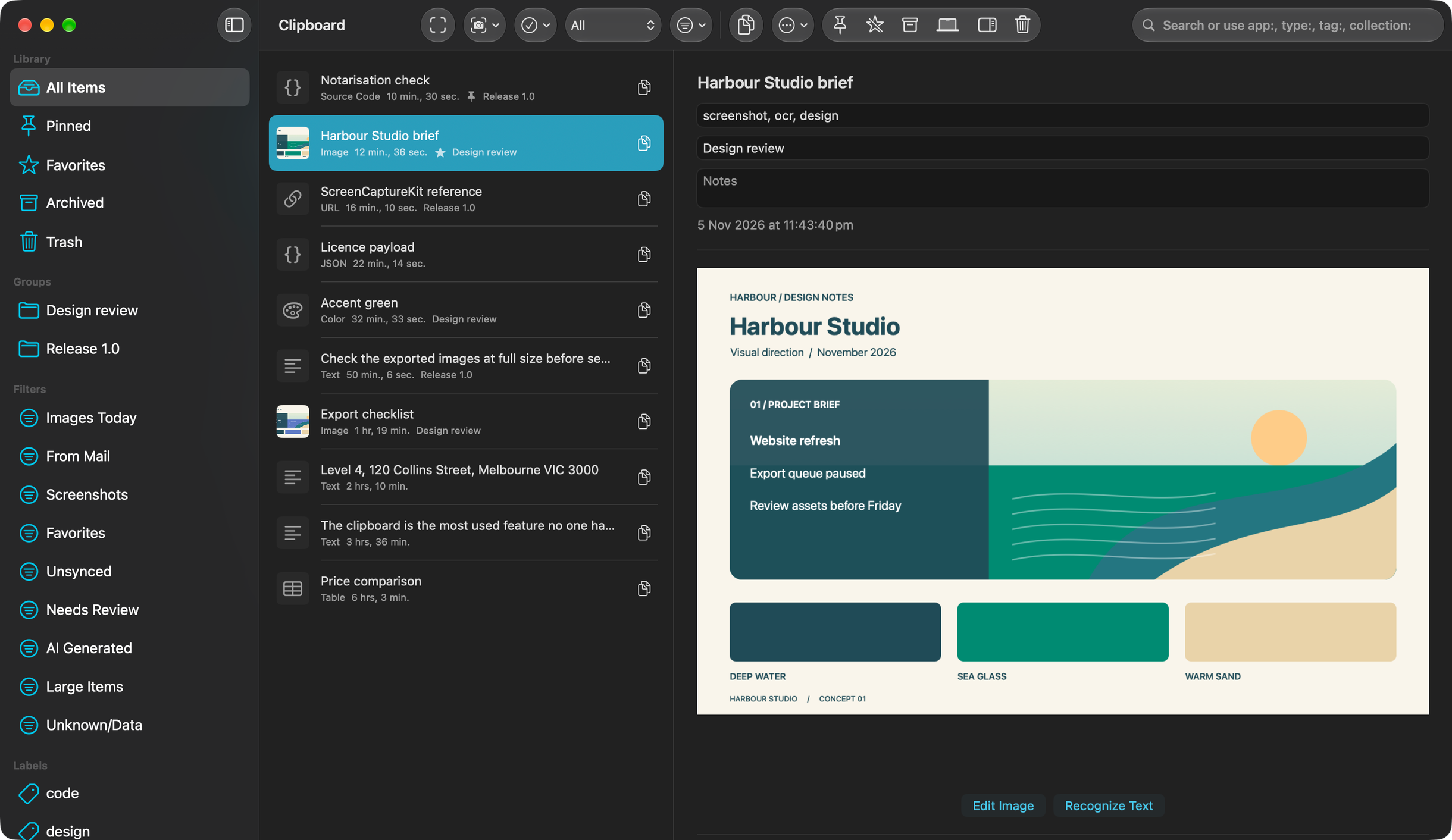
ClipSnap keeps clipboard history, screenshots and recordings in a searchable library. You can find text in images, edit captures and reuse saved content.
See ClipSnap in use
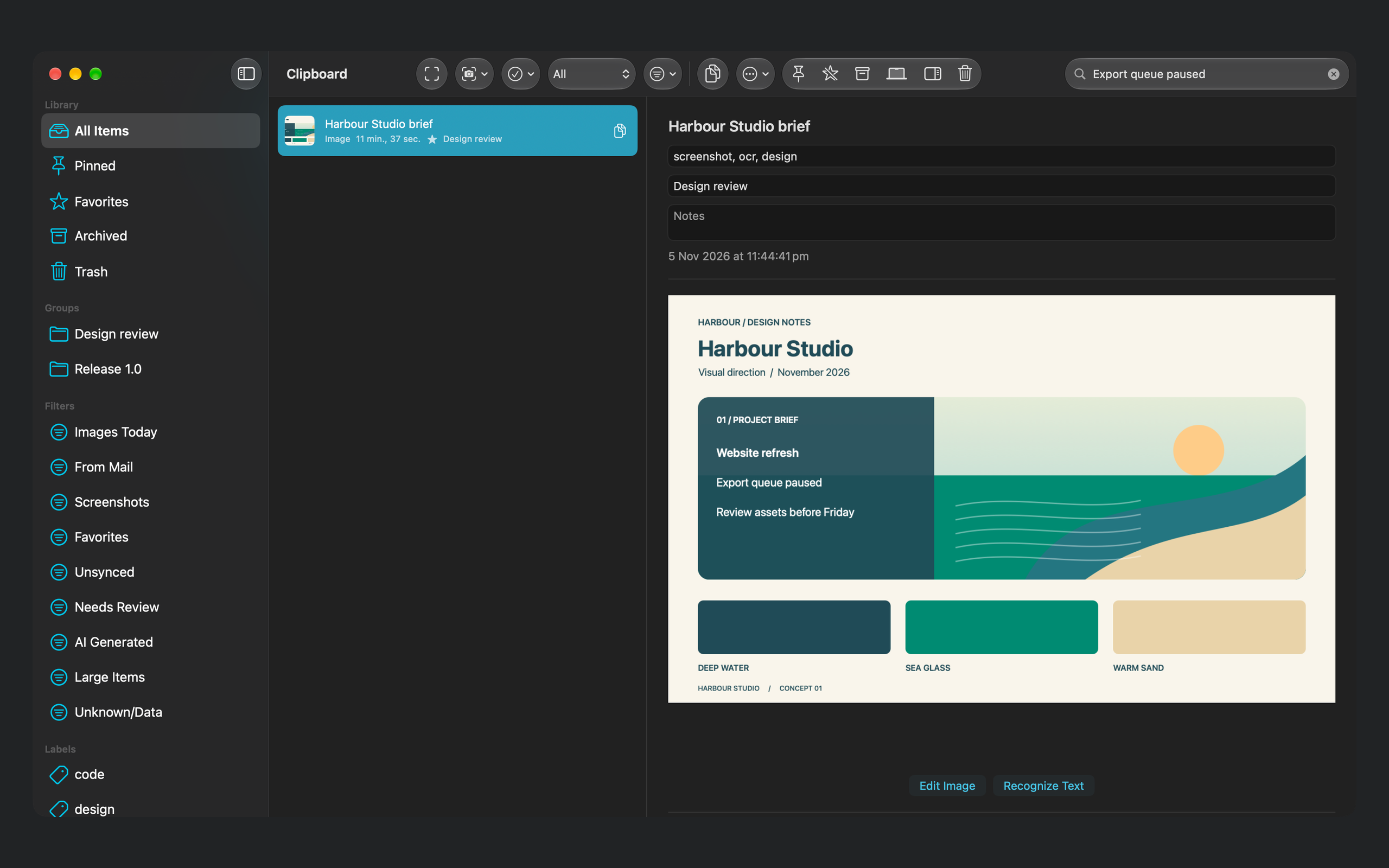
Find words inside saved images and preview the matching capture.
Capture and work with the result
A capture can become a reference, an explanation or something to paste into your next piece of work.
Clipboard history with the original detail
Keep supported text, images, links, files and richer clipboard formats together. ClipSnap preserves copied formatting when the source provides it and keeps supported multi-item copies together. Some app-specific formats have no preview or may paste differently in another app.
Screenshots and recordings
Capture a region, window, application or display. Delayed capture gives you time to open a menu or prepare a view. Screen recording includes pause and resume, with audio options for recordings that need sound. macOS asks for screen capture access and, when used, microphone access.
Edit before you share
Crop, rotate or flip an image, then add arrows, shapes, highlights or text. Redact an area before exporting a screenshot so the image you share shows the relevant detail.
Find what you half-remember
Search the contents of your history, then narrow it down when you know a little more.
Search words inside screenshots
ClipSnap recognises text in screenshots on your Mac. Search for a phrase you saw on screen, then copy the recognised text. QR and barcode recognition also makes detected values searchable and copyable, with an option to open recognised web links.
Precise searches and saved filters
Combine words with filters for the source app, item type, tag, group, date or size. For example, type:image after:today narrows the list to today's images. Save a search you use often instead of rebuilding it each time.
A library you can organise and reuse
Use groups and labels to keep related items together, pin frequent snippets and favourite items you want to retain through cleanups. Archive older material or recover items from Trash. Browse in the main window, use the keyboard-driven quick picker, or reach recents and pinned items from the menu bar.
Control what gets kept
Keep the library local, choose which apps to exclude, and decide when content leaves it.
Local storage and privacy controls
History is stored on your Mac. Exclude applications from clipboard monitoring and use the sensitive-content controls. Detection is a safety net, so explicitly exclude apps whose contents you do not want stored. Optional Spotlight indexing makes eligible history items available in system search.
Optional help with organisation
On supported Macs, Apple Intelligence can suggest titles, tags, groups and image descriptions on device. Items marked sensitive are excluded from this processing. Core capture and search tools remain usable without Apple Intelligence.
Export and folder sync
Export items or sync portable packages to a folder you choose, manually or at an interval while ClipSnap is running. Optional encryption protects synced packages. A cloud-managed folder may be transferred by its provider; ClipSnap's built-in iCloud sync is not enabled.
Trial and purchase
The free seven-day trial starts when you choose Start 7-Day Trial in the app. It includes every feature and does not renew automatically. Continued full use requires a one-time in-app purchase. There is no subscription.
After the trial, new capture, import, editing and organisation changes pause. You can still view, search, copy, share, export, back up, restore from Trash and delete your saved history.
Use Restore Purchases in the app to check purchases made with your Apple Account.
System requirements
Requires macOS 14 or later.
Optional Apple Intelligence features require macOS 26 or later and a compatible Mac with Apple Intelligence available.
 Adrian Feeger